A smart ESP32 iot device used in controllling various electronics from the range of lightning devices, wall socket , HVAc ETC. via the internet or wirelessly using WiFi.
The .ino code requires serveral libraries to function properly mostr especially the arduino json library latest version 6.xx, Firebase esp cliet library by Mobizt https://github.com/mobizt/Firebase-ESP-Client, And my onetouch wifi manager library https://github.com/megavel/MyCustomWifiManager for assigning the esp32 Custom ssid when being switched to SOFT AP mode in other for it connect to, when rebooted back into STATION MODE. The default ESP32 wifimanager STA MODE credentials are preprogrammed on the WIFImanager library as SSID: ESP32_WifiManager and PASSWORD: 12345678.
#what does this syetem do -firstly it controls any device connected to the two output ports declared on the code using an application built using MIT APP INVENTOR via interent with the aid of firebase and also via WiFi using the esp32 wifi server through http get request. -The Wifi Manger library file aids in switching the ESP 32 device to station mode and assigns the above credentials to it this is done to allow the user store in custom/ all ready existing WIFI hotspot details by creating a web server hoisted by the esp, which is in turn accessed via the IP address 192.168.4.1 which is already accessible via the Onetouch application. Both the ssid and password are kept stored in the esp32 EEPROM memoiry which allows for the esp32 when restarted after recieving this credentials to go into station mode and connect to the stored credentials. The WIFI Credential form can be activated manually by pressing the boot button on the esp32 or by pressing the profile settiongs icon on the app only when the esp is connected to an already stored credential.
#include <WiFi.h>
#include <WebServer.h>
#include <Arduino.h>
#include <HTML.h>
#include <EEPROM.h>
#include <Firebase_ESP_Client.h>

#include <WiFiManager.h>


//Provide the token generation process info.
#include "addons/TokenHelper.h"
//Provide the RTDB payload printing info and other helper functions.
#include "addons/RTDBHelper.h"


// Insert Firebase project API Key
#define API_KEY  "AIzaSyDwVmSMxz4AKAQX5WE5-iMfqskYsMY3QIg"

// Insert RTDB URLefine the RTDB URL
#define DATABASE_URL  "https://rilonetouch-default-rtdb.firebaseio.com/"


//Define Firebase Data object
FirebaseData fbdo;

FirebaseAuth auth;

FirebaseConfig config;

unsigned long sendDataPrevMillis = 0;
bool signupOK = false;
String getip;
String modevalue;
String ledstate;
String ledstate2;
String cont;
float floatValue;
int ledpin1 = 27;
int ledpin2 = 25;
int buttonState;
int buttonpin = 0;
String devicestate;
String devicestate2;

WiFiServer server(80);


     const char * EEP ;
     const char * EEP2;
The above block of code shows the libraries being called and variable declaration with the string literals EEP & EEP2 as the variable to hold the custom credentials.
 restart:
  if(!CheckWIFICreds()){
    Serial.println("No WIFI credentials stored in memory. Loading form...");
    while(loadWIFICredsForm());
  }
     else {
       String  a= EEPROM.readString(100);
       String b = EEPROM.readString(200);

          EEP = strcpy(new char[a.length()+ 1],a.c_str());
              EEP2 = strcpy(new char[b.length()+ 1],b.c_str());

                    Serial.print("ssid:");
                    Serial.print(EEP);
                    Serial.print("\npassword:");
                    Serial.print(EEP2);

              WiFi.begin(EEP,EEP2);
  Serial.print("\nif wifi not available you can change your credentials using the boot button:");
       Serial.print("\nConnecting to Wi-Fi:");
        Serial.print(EEP);
        while (WiFi.status() != WL_CONNECTED) {
          buttonState = digitalRead(buttonpin);
               if(buttonState == LOW ){
                         Serial.print("\nWiping any Stored credentials froim database:");
                         for(int i=0;i<400;i++){
                              EEPROM.writeByte(i,0);
                                       }
                                 EEPROM.commit();
                   goto restart;
         }
          delay(10);

        }
          Serial.println();
          Serial.print("Connected with IP: ");
          }
On the void setup() function the esp is started up, the otput pins are declared and then it checks the eeprom for any stored credentials if available using the if(!CheckWIFICreds()) which returns a false if no credentials availabe and then loads up the LoadWIFICredsForm() which swutches the ESP32 to a SOFTAP mode and creates a web server hosted on 198.168.4.1 to allow the user his/her already existing hostpot or router credentials to the EEPROM.
IF the !CheckWIFICreds() returns true the esp32 goes on to connect to the wifi router credentials stored in its EEPROM. If the hotspot or router isnt available and the user wnats to change the credentials to another one (router or hotspot) this can be done by holding or pressing the boot putton which triggers a wipe on the EEPROM and restart the !CheckWIFICreds() Function to permit credentials editing.
config.api_key = API_KEY;

  // Assign the RTDB URL (required)
  config.database_url = DATABASE_URL;

  // Sign up


  if (Firebase.signUp(&config, &auth, "", "")) {
    Serial.println("ok");
    signupOK = true;
  }
  else {
    Serial.printf("%s\n", config.signer.signupError.message.c_str());

  }

  // Assign the callback function for the long running token generation task
  config.token_status_callback = tokenStatusCallback; //see addons/TokenHelper.h
  Firebase.begin(&config, &auth);
  Firebase.reconnectWiFi(true);
And if available the esp32 connects to the router/hotspot and then runs the firebase realtime database setup to alllow internet control.
void internet(){


  if (Firebase.RTDB.getString(&fbdo, "/test/ledstate1")) {
    if (fbdo.dataType() == "string") {   //specifies the data type of the value str holds which is an int in this case
      ledstate = fbdo.stringData();
      char * str;

      String str_obj(ledstate);
      str = &str_obj[1];   //using a char pointer to hold value stored in the second address of the variable led state

       Serial.println("\nBulb Pin recieved: ");
      Serial.println(*str);

       if(*str == '1'){
         Serial.println("Bulb is on");
                  digitalWrite(ledpin1, HIGH);
            }
            else if(*str == '0'){
               Serial.println("Bulb is off");
                digitalWrite(ledpin1, LOW);
                 }
    }

  }

  if (Firebase.RTDB.getString(&fbdo, "/test/ledstate2")) {
    if (fbdo.dataType() == "string") {   //specifies the data type of the value str holds which is an int in this case
      ledstate2 = fbdo.stringData();
      char * strr;

      String str_obj2(ledstate2);
      strr = &str_obj2[1];   //using a char pointer to hold value stored in the second address of the variable led state

       Serial.println("\nSocket pin recieved: ");
      Serial.println(*strr);

       if(*strr == '2'){
         Serial.println("led is on");
                  digitalWrite(ledpin2, HIGH);
            }
            else if(*strr == '3'){
               Serial.println("led is off");
                digitalWrite(ledpin2, LOW);
                 }
    }
  }

}
The void Internet() function aids in controlling the two output ports using the variables ledstate and ledstate2 which are stored in firebase project bucket test. Once this values of the variables are recived they are used in triggerring either a HIGH or a LOW on both ledpin1 and ledpin2.
void wlancontrol(){
  buttonState = digitalRead(buttonpin);
  WiFiClient client = server.available();   // listen for incoming clients

  if (client) {                             // if you get a client,
    Serial.println("New Client.");           // print a message out the serial port
    String currentLine = "";                // make a String to hold incoming data from the client
    while (client.connected()) {            // loop while the client's connected
      if (client.available()) {             // if there's bytes to read from the client,
        char c = client.read();
        Serial.write(c);
        if (c == '\n') {

          // if the current line is blank, you got two newline characters in a row.
          // that's the end of the client HTTP request, so send a response:
          if (currentLine.length() == 0) {
            // HTTP headers always start with a response code (e.g. HTTP/1.1 200 OK)
            // and a content-type so the client knows what's coming, then a blank line:
            client.println("HTTP/1.1 200 OK");
            client.println("Content-type:text/html");
            client.println();

            // the content of the HTTP response follows the header:
            client.print("Click <a href=\"/H\">here</a> to turn the LED on pin 27 on.<br>");
            client.print("Click <a href=\"/L\">here</a> to turn the LED on pin 27 off.<br>");

            // The HTTP response ends with another blank line:
            client.println();
            // break out of the while loop:
            break;
          } else {    // if you got a newline, then clear currentLine:
            currentLine = "";
          }
        } else if (c != '\r') {  // if you got anything else but a carriage return character,
          currentLine += c;
        }

        // Check to see if the client request was "GET /1" or "GET /0":
        if (currentLine.endsWith("GET /1")) {
          digitalWrite(ledpin1, HIGH);               // GET /1 turns the LED on
        }
        if (currentLine.endsWith("GET /0")) {
          digitalWrite(ledpin1, LOW);                // GET /0 turns the LED off
        }
         if (currentLine.endsWith("GET /H")) {
          digitalWrite(ledpin2, HIGH);               // GET /H turns the LED on
        }
        if (currentLine.endsWith("GET /L")) {
          digitalWrite(ledpin2, LOW);                // GET /L turns the LED off
        }
        if(buttonState == LOW  || currentLine.endsWith("GET /S") ){
                    saveconfig();
         }
      }
    }
    // close the connection:
    client.stop();
    Serial.println("Client Disconnected.");
  }
}
Void wlancontrol() Function allows the system outputs to the controlled via http get request payload from the wifi server once its been connected to a client of the your choice.
void getips(){


   if (Firebase.ready() && signupOK && (millis() - sendDataPrevMillis > 15000 || sendDataPrevMillis == 0)){
    sendDataPrevMillis = millis();
    // Write an ip address on the database path test/link
    getip = WiFi.localIP().toString();
    if (Firebase.RTDB.setString(&fbdo, "test/link", getip)){

    }
  }
}
void sendstate(){
                 devicestate = "state_on";
                       devicestate2 = "state_off";
   .....................................................
   ....................................
   .................................
   }
        else if(){
              ..................................{
       }
}
The getip() functions sends hat ever ip generated once the ESP32 gets connected to any new or existing client an dsend that ip down to the firebase server immediately which this value can be retrieved from the onetouch app and added to the setip field to allow control of outputs using the ON & OFF button.
While the sendstate() function sends the present state of the device to the firebase sever and stores it into the project backet test under the key devicestate & devicestate2.
** THE REST OF THE CODE AARE MADE AVAILABLE ON THE SOURCE FILES THATS ALL FOR NOW **
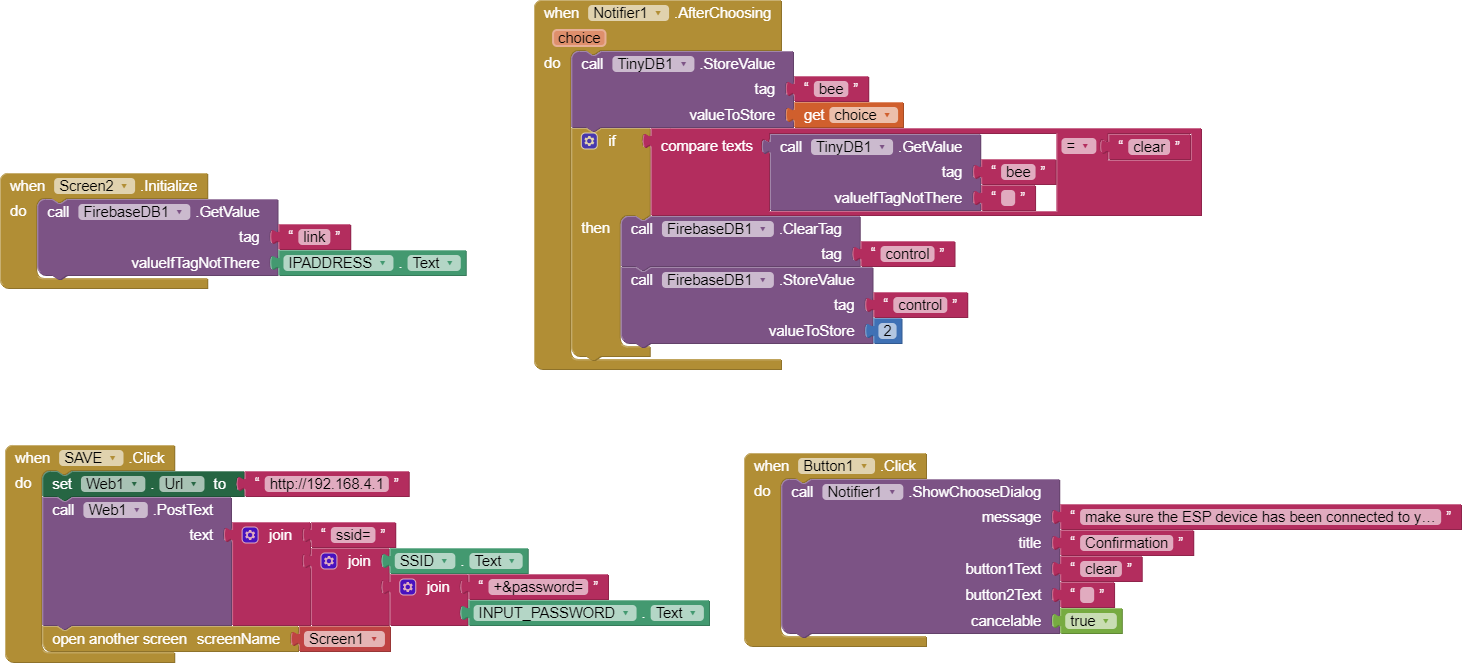
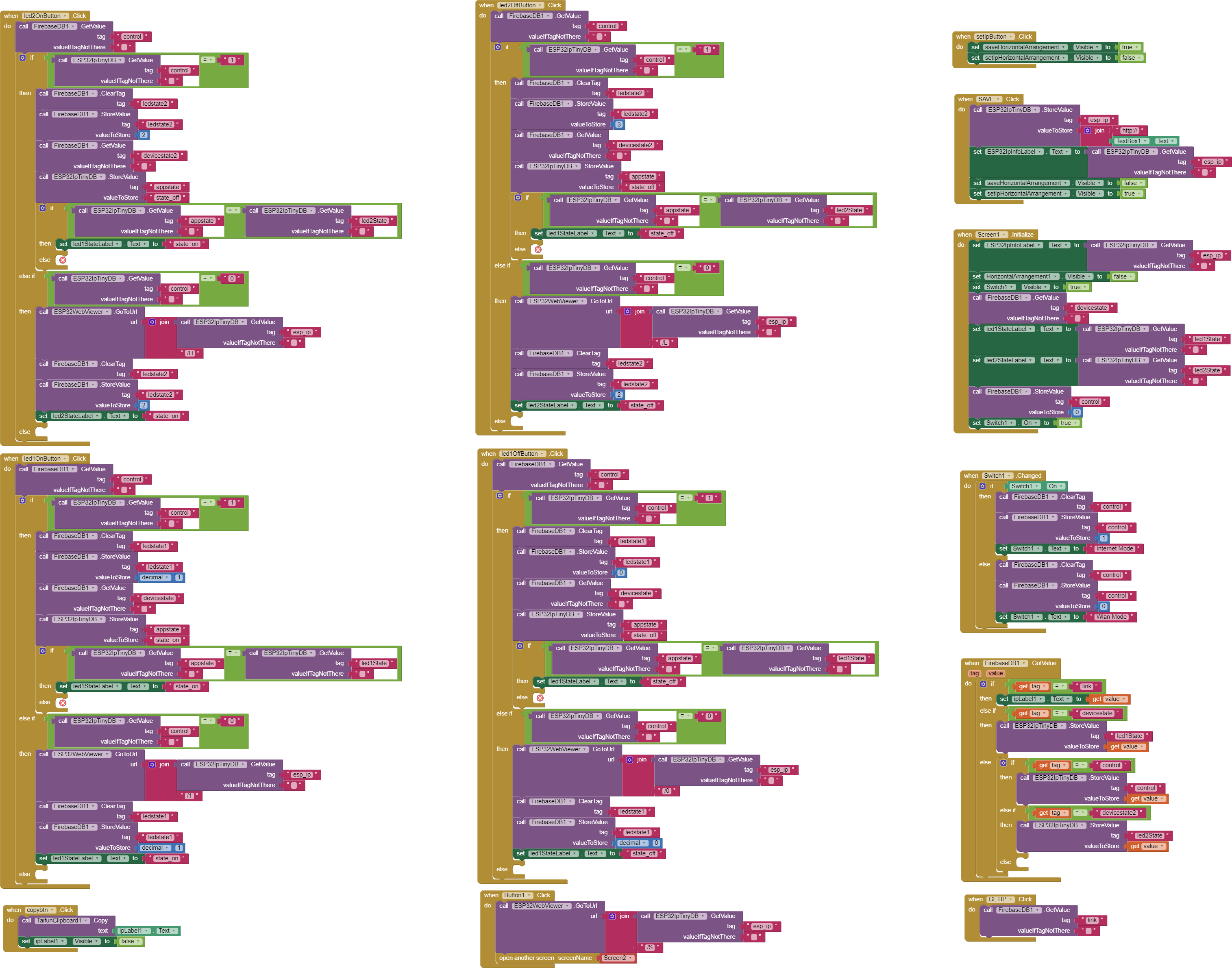
App Inventor blocks: Use the Onetouch.aia file for importing to app inventor
Screen 1:
Screen 2: